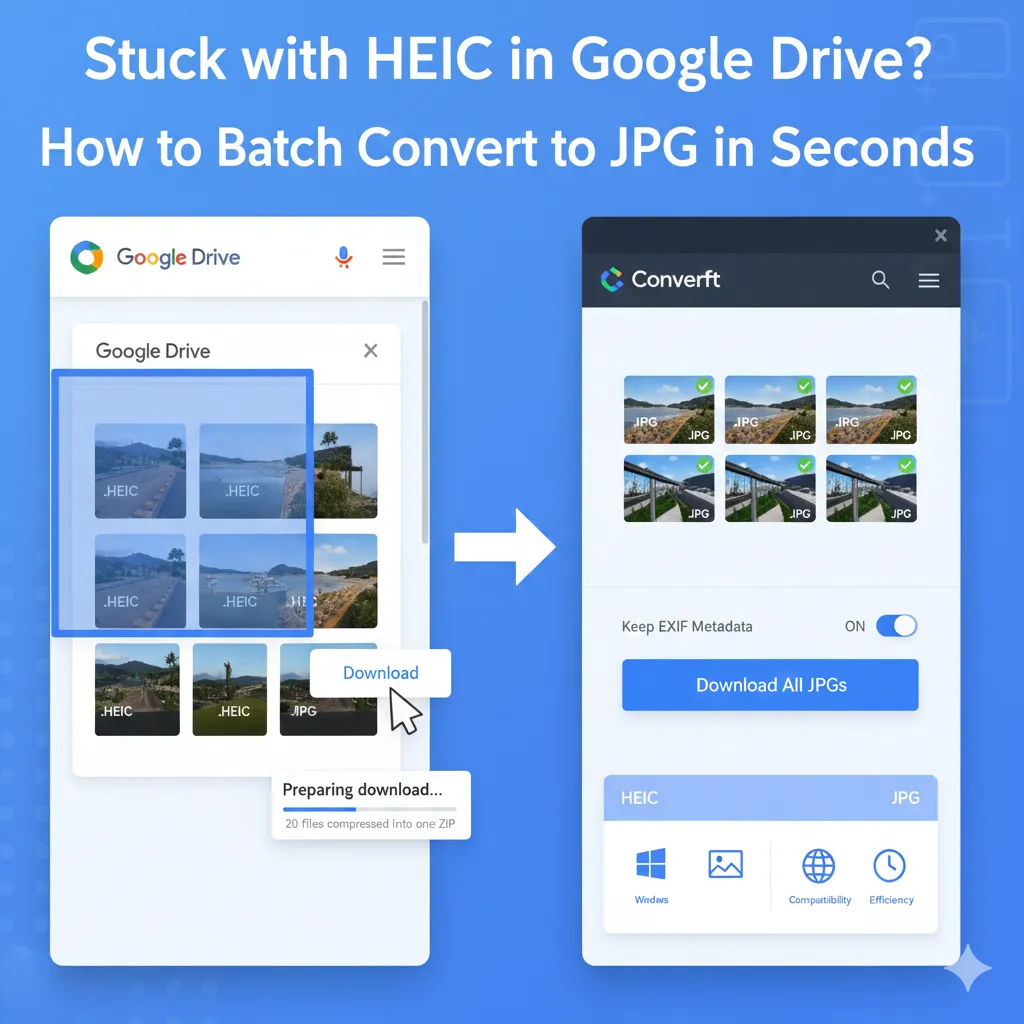
Many iPhone users rely on Google Drive for automatic backups, only to realize later that the .HEIC format is a "compatibility nightmare" when it’s time to work, email, or edit on Windows.
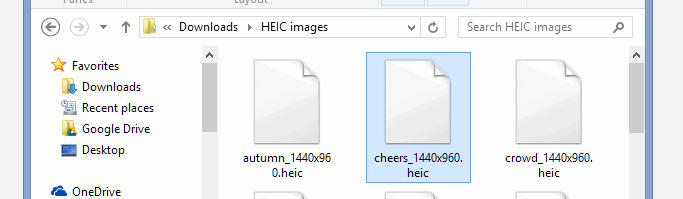
Google Drive doesn't offer a native batch-conversion tool, and most online converters either crush your image quality or limit how many files you can upload. After testing various workflows, we’ve identified the most efficient way to handle large volumes of photos without losing a single pixel.
Why is HEIC such a headache for Google Drive users?
While High Efficiency Image Coding (HEIC) saves up to 50% of your storage space, it fails in professional and cross-platform environments:
- Software Incompatibility: Most CMS platforms (like WordPress), CRM tools, and older office software do not recognize HEIC.
- Windows Viewing Issues: Without installing specific paid extensions, Windows users often see blank icons instead of photo previews.
- Email Sharing Risks: Sending an HEIC attachment to a client or colleague is a gamble—they likely won't be able to view it in their browser or mail app.
Best Practice: Batch Convert from Google Drive to JPG
The most reliable workflow is "Cloud Export + Intelligent Transcoding." Here is the step-by-step guide:
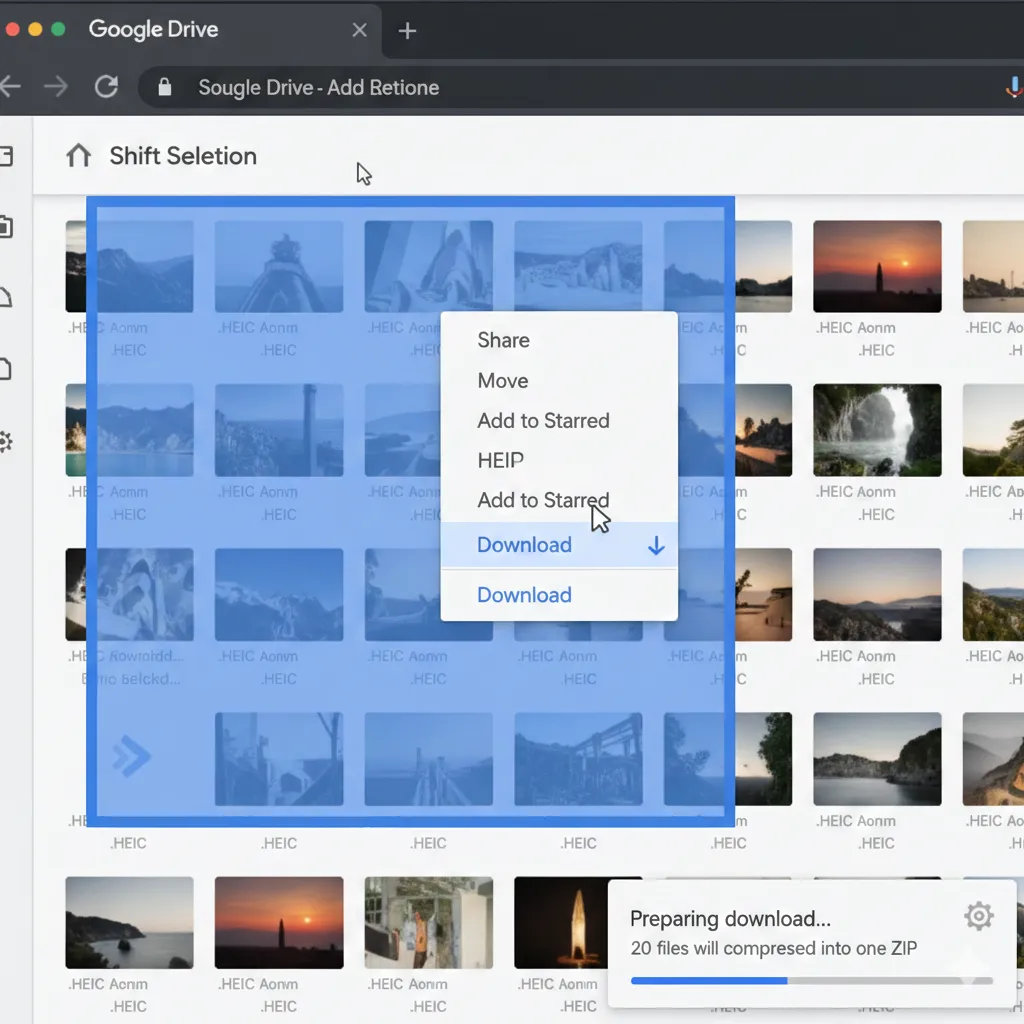
Step 1: Batch Download from Google Drive
- Open Google Drive and navigate to your photo folder.
- Use
Shift + Clickto select a range, orCtrl/Cmd + Ato select all. - Right-click and select "Download." Google will automatically compress your files into a single ZIP archive.
- Once downloaded, extract the ZIP file on your computer.
Step 2: High-Fidelity Conversion with Convertft (Recommended)
After testing dozens of tools, Convertft HEIC to JPG stands out because it solves the two biggest frustrations: quality loss and privacy risks.
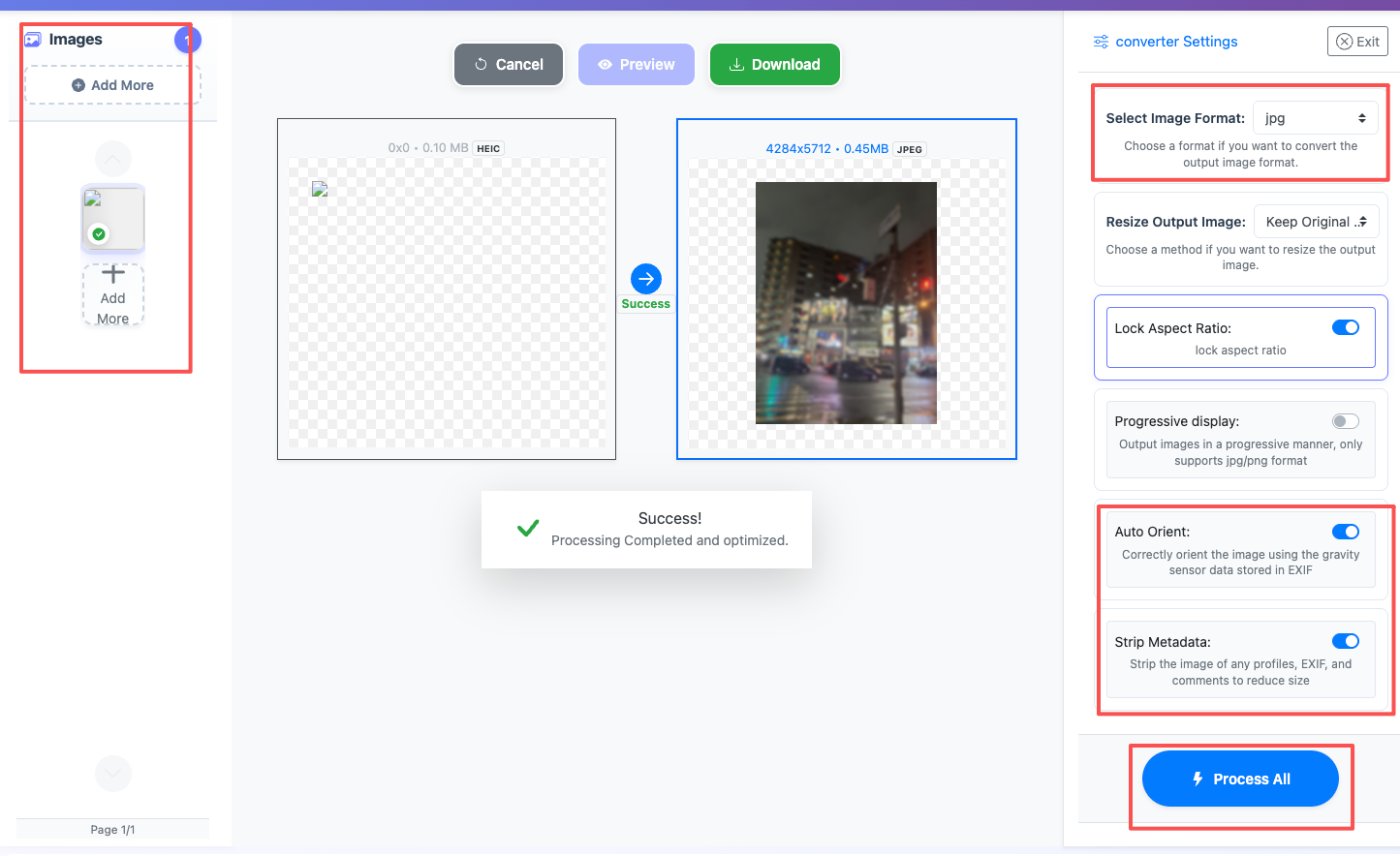
How to use it:
- Go to the Convertft website and select the HEIC to JPG tool.
- Drag and drop your extracted HEIC files directly into the upload area.
- Key Setting: Ensure "Keep EXIF Metadata" is checked. This preserves your original timestamps, camera settings, and GPS data.
- Click "Process All" and download your processed JPGs as a clean ZIP package.
Why Choose Convertft Over Other Online Tools?
Google favors tools that provide high performance and unique value.

Convertft offers several professional-grade advantages:
- 1:1 Visual Fidelity: Using advanced transcoding algorithms, it avoids the color shifting and "noise" artifacts common in generic converters.
- Privacy-First Processing: Your files are encrypted during the process and permanently deleted from the server within 1 hour. No human sees your data.
- Bulk Processing Power: Whether you have 10 or 200 photos from your latest trip, Convertft’s multi-threaded engine handles them simultaneously to save you time.
- 100% Free & No Watermarks: Your professional photos stay professional. No ugly logos or hidden fees.
Side-by-Side: Does Converting to JPG Ruin Quality?
Not if you use the right tool. Here is how Convertft compares to standard "free" converters:
| Feature | Standard Online Converters | Convertft Optimized Solution |
|---|---|---|
| Color Depth | Prone to "banding" in gradients | Perfectly preserves 8-bit color |
| Metadata (EXIF) | Often stripped away | Full retention for easy sorting |
| Speed | One-by-one processing (slow) | Parallel processing (instant) |
| Orientation | Photos may appear sideways | Auto-rotates based on EXIF data |
Common Use Cases for HEIC to JPG
- Email Attachments: JPG is the gold standard for Gmail, Outlook, and corporate mail. Ensure your recipient sees the image instantly in the preview window.
- Corporate Systems & CMS: Most company portals, CRMs (like Salesforce), and websites only accept JPG, PNG, or PDF. Converting first prevents upload errors and wasted time.
- Windows Ecosystem: View and edit your photos instantly using the native Windows Photo Viewer or Adobe suite without needing extra codecs.
- Web & SEO: Browsers cannot render HEIC natively. If you're a blogger, converting to JPG is essential for your images to be indexed by Google and delivered via CDN.
Final Verdict
If you have a backlog of HEIC photos in Google Drive, don't waste time renaming them or saving them one by one. Download the ZIP, run it through Convertft, and get on with your day.