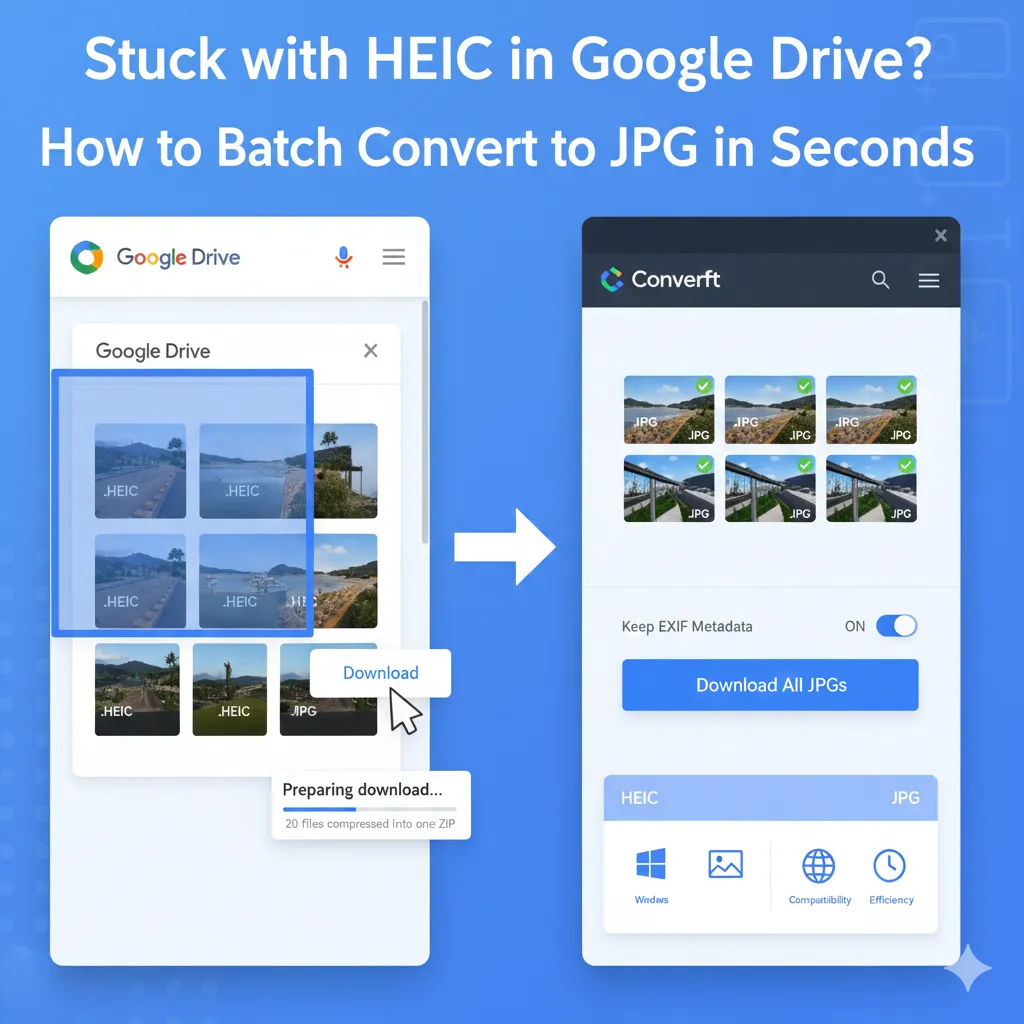
HEIC (High Efficiency Image Container) is an efficient image format pioneered by Apple, widely used on iPhones and iPads. Compared to JPEG, HEIC maintains high image quality while significantly reducing file size.
Why HEIC Files Won't Open on Windows: The Codec and Licensing Issue
Many users encounter a common, frustrating problem:
"I received an HEIC file, but it won't open on my Windows PC. The system prompts me to install an extension, and that extension requires payment."
This scenario is common on Windows computers, older operating systems, or in software that lacks native HEIC support.

The root cause of this incompatibility is that HEIC images are typically encoded using HEVC (H.265) video codec. This codec is managed by multiple patent pools, requiring commercial systems to pay licensing fees to integrate the decoding capability. Consequently, Microsoft does not provide the HEVC decoder as a free, default component of Windows, which is the primary reason users cannot open HEIC files directly.
How to Open HEIC Files: Three Reliable Solutions
Based on our extensive experience in file compatibility solutions, here are three practical and reliable methods to help you open HEIC files.
Method 1: Convert HEIC to JPEG or PNG Using an Online Tool (Best for Compatibility)
The simplest, most compatible solution is to convert your HEIC file to widely supported formats like JPEG or PNG.
Why is this the recommended method?
- Universal Compatibility: JPEG and PNG are natively supported by virtually every device, operating system, and software application globally.
- Zero Installation: The entire conversion process is completed in your web browser, eliminating the need to install any system plugins or desktop programs.
- Efficiency & Batch Processing: Modern tools, such as Convertft's HEIC Converter, are optimized for speed and support batch conversion, which is ideal for users with a large volume of photos.
- Privacy Assurance: Reputable online services like Convertft prioritize your privacy by guaranteeing that your files are automatically and permanently deleted from the servers immediately after conversion or within a short retention period.
Typical Steps for Using an Online Tool (e.g., Convertft)
- Upload your HEIC image(s).
- Select your desired output format (JPEG or PNG).
- Download and immediately open the converted image.
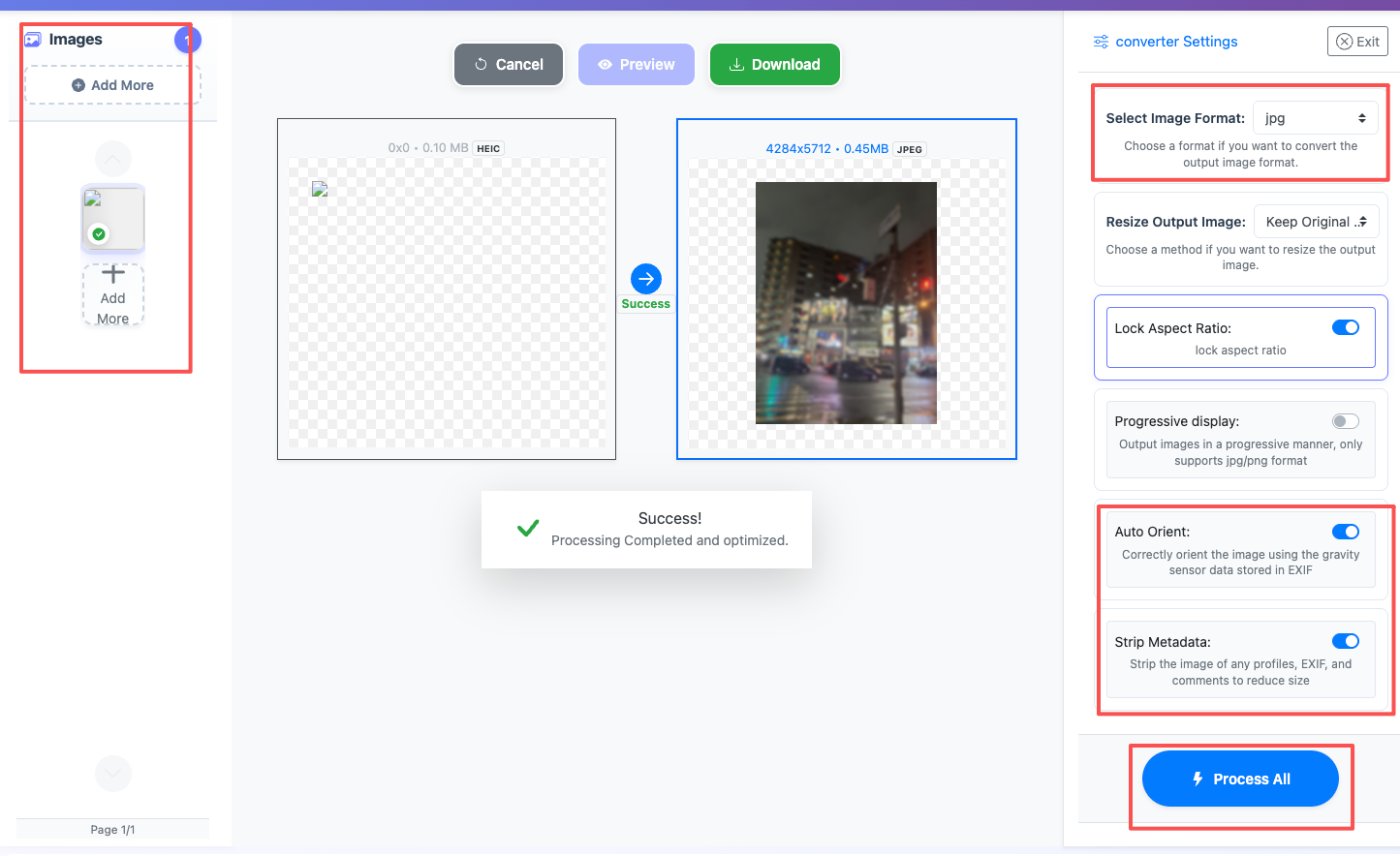
Tip: If you are looking for a fast, free, and privacy-focused solution, you can jump straight to Convertft HEIC to JPEG Tool Page to start converting now.
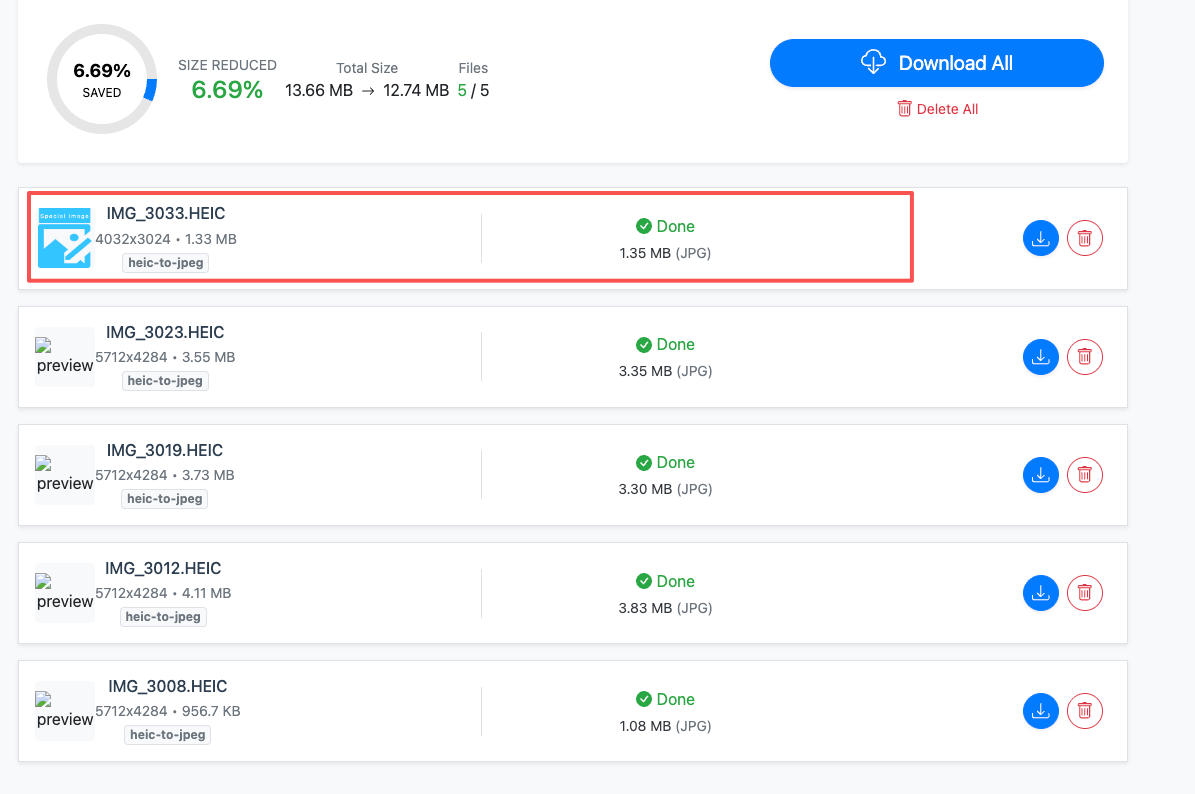
When to use this method:
- You received photos from an iPhone and cannot open them on a Windows or Android device.
- You need to convert a large batch of HEIC images simultaneously.
- You prefer not to configure system settings or pay for extensions.
- This method is the most straightforward and stable solution for most users.
Method 2: Open HEIC Directly with System or Third-Party Software
Some operating systems and software applications already offer native HEIC support.
On macOS
- HEIC files can be opened directly in Finder, Preview, and Photos without any additional configuration.
On Windows 10 / 11
- Native support is not complete.
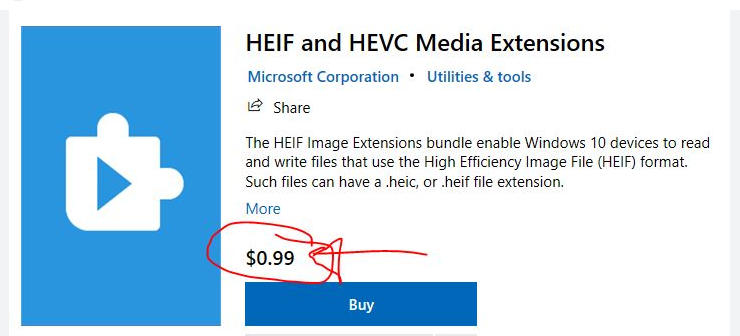
- You often need to install the HEIF Image Extensions (which may require a small fee).
- Sometimes the HEVC Video Extensions are also necessary.
- Once installed, files can be opened in Windows Photos and the new Paint tool.
Third-Party Software
- Image viewers and editing software (e.g., certain versions of GIMP or Photoshop).
Note: Due to the licensing requirements, compatibility varies greatly across different software versions, and the process of installing paid extensions can be complicated for novice users. Batch processing capability is also often limited in these system solutions.
Method 3: Use a Browser to View Converted HEIC Files
Modern browsers, in conjunction with online conversion tools, allow you to view HEIC images indirectly by converting them to formats like JPEG or PNG on the fly.
When to use this method:
- You only need to quickly preview the image.
- You are using a public or restricted device.
- You do not wish to install any software or extensions.
- You do not need to permanently save the image content.
Advantages
-
No download required.
-
Cross-platform (Windows / macOS / Linux).
-
Operation is fast.
This method is ideal for temporary viewing of HEIC images.
How to Choose the Right Method
| Use Case | Recommended Method |
|---|---|
| Windows PC cannot open HEIC | Conversion to JPEG, PNG, or WebP using Convertft or similar tools. |
| macOS User | Open directly. |
| Quick Preview | Use an online tool for quick conversion and viewing. |
| Batch Processing Multiple Files | Conversion, utilize the batch features of Convertft. |
| Sharing with Others | Convert to JPEG before sharing. |
Conclusion
HEIC is an efficient format, but its compatibility is limited. If you encounter issues opening these files, there is no need to worry:
- You can convert the format.
- You can install supporting extensions.
- You can view them via a browser and online tools.
Choosing the method that best suits your habits will allow you to easily solve the HEIC file issue. For the majority of users, converting HEIC to JPEG or PNG remains the most stable and hassle-free solution.