Introduction
Many Windows users run into a common issue:
photos taken on an iPhone (HEIC format) cannot be opened on Windows 10.
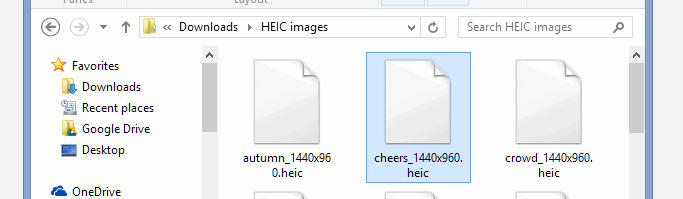
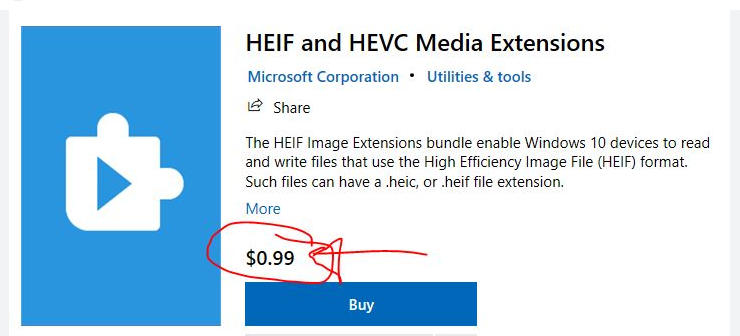
Windows will often show an error saying that the required codec is missing. While Microsoft offers an HEVC/HEIF codec, it usually requires an additional purchase. For users who only occasionally handle HEIC photos, buying a codec simply isn’t worth it.
A faster, free alternative is to use an online tool to convert HEIC to JPEG—allowing the images to open normally on Windows 10.
Why Can’t Windows Open HEIC Files?
iPhones save photos using HEVC (H.265) compression and package them in the HEIC format. This provides high image quality with significantly smaller file sizes.
However, because the HEVC codec is not pre-installed in Windows 10, the system cannot decode HEIC images, resulting in the “image format not supported” error.
What Is HEIC and Why Convert It?
HEIC (High Efficiency Image Format) offers several advantages:
-
High quality with smaller size
Typically 40% smaller than JPEG at similar quality. -
Advanced features
Supports burst photos, transparency, HDR, and more.
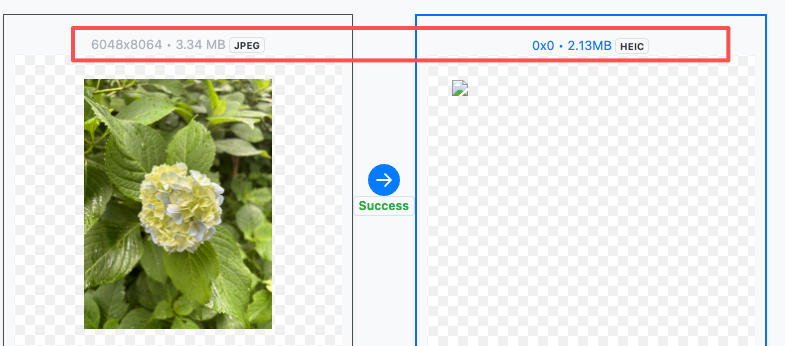
While macOS and iOS support HEIC natively, Windows 10, many websites, and third-party apps do not.
To ensure compatibility, sharing, editing, or simple previewing, you’ll often need to convert HEIC to JPEG.
How to Convert HEIC to JPEG (Windows 10)
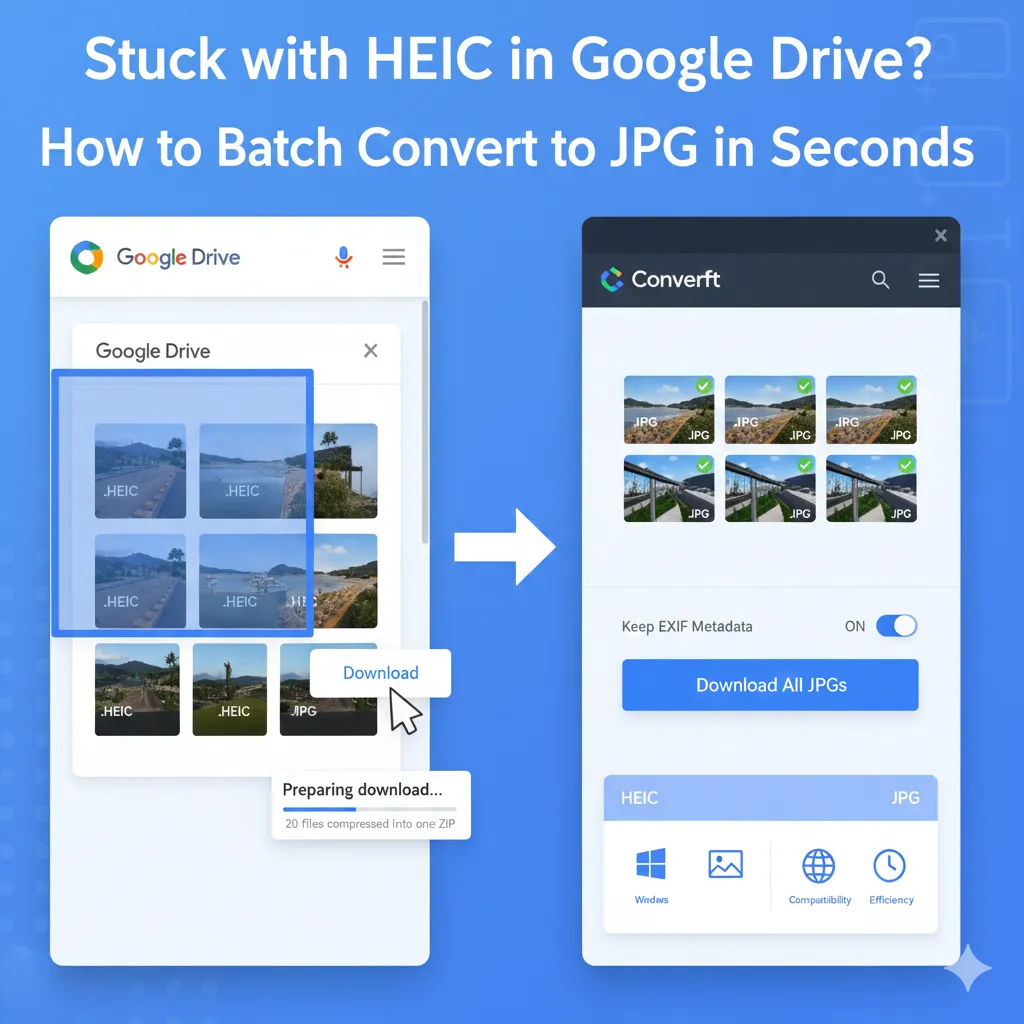
ConvertFT offers a simple, fast online HEIC to JPEG converter.
Just follow these steps:
-
Open the ConvertFT HEIC → JPEG tool page
-
Upload one or more HEIC files (drag-and-drop supported)
-
Click Process All
-
Wait a few seconds for processing
-
Download the JPEG images
-
Optional: enable Auto-Rotation or Remove EXIF
Tip: When you upload multiple files, ConvertFT automatically performs batch conversion, saving processing time.
Note: Your browser may not display HEIC thumbnails, but the conversion still works correctly in the background. This is a browser limitation—not a tool bug.
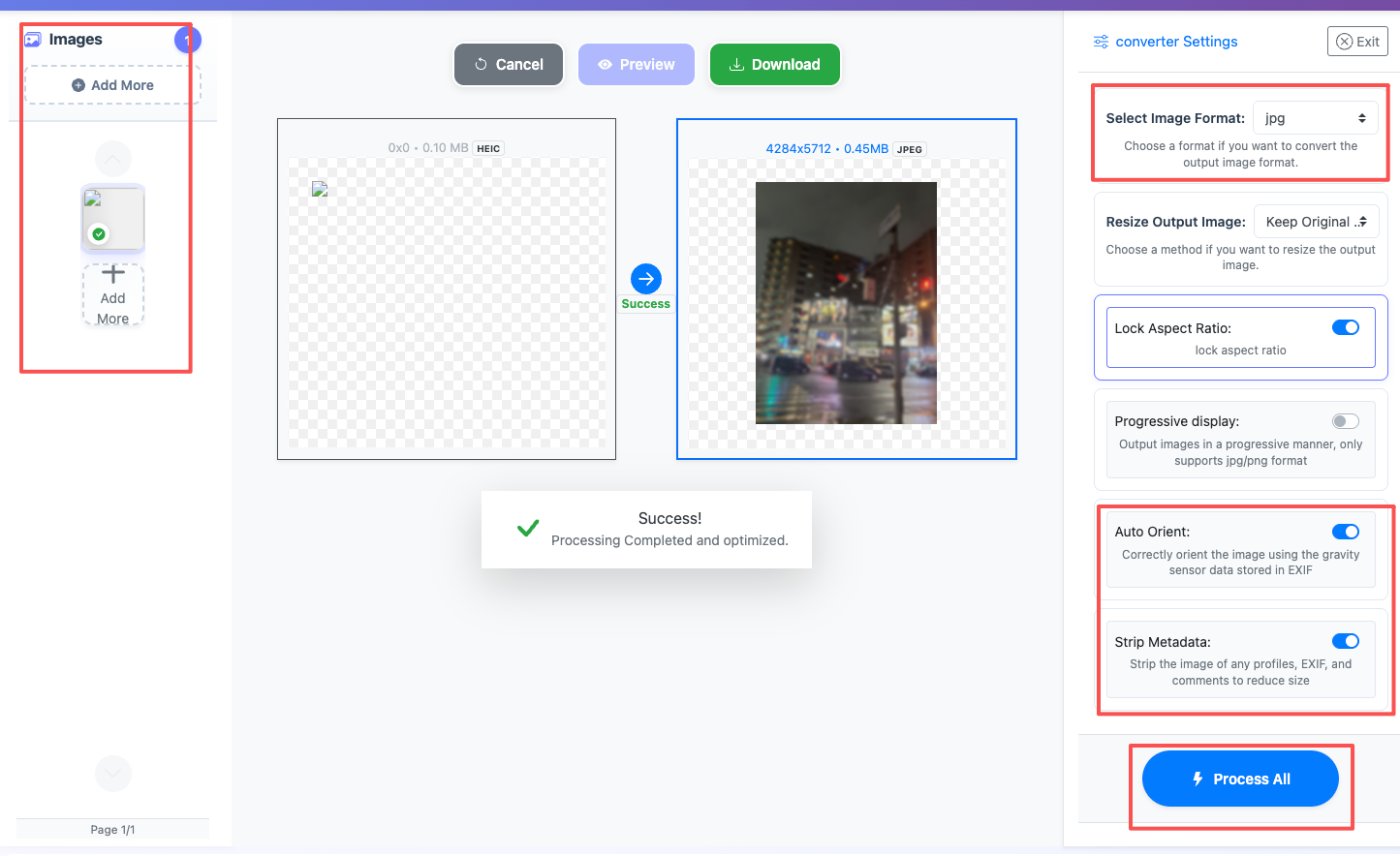
After conversion, the JPEG files can be viewed on Windows, Mac, Android, and virtually all devices. Because HEIC uses more advanced compression, JPEG files may be slightly larger—that’s normal.
Why Choose ConvertFT? Key Features & Advantages
ConvertFT is built specifically for users who need fast, reliable batch conversion.
Here are the main benefits:
1. Supports Large HEIC Files
iPhone photos often exceed 15MB.
ConvertFT supports HEIC files up to 50MB, with stable processing.
(Large files take slightly longer—this is normal for high-resolution images.)
2. 100% Free Online Conversion
-
No software installation
-
No registration required
-
Works in any modern browser
-
No daily limits or hidden restrictions
Most competing tools limit daily conversions—ConvertFT does not.
3. True Batch Processing
-
Upload multiple photos at once
-
Convert all files simultaneously
-
Fast parallel processing
Many tools convert images one at a time; ConvertFT handles multiple files efficiently.
4. High Image Quality
-
JPEG output retains excellent clarity
-
EXIF data can be preserved if needed
5. Privacy Protection
-
EXIF removal enabled by default
-
Photos are automatically deleted after processing
-
No data stored on the server
Your images remain private and secure.
6. Automatic Rotation
-
Corrects iPhone orientation issues
-
Ensures photos always display correctly on Windows
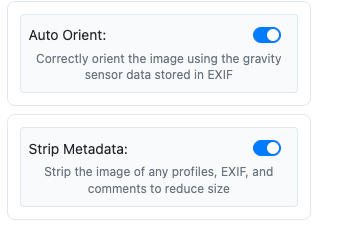
iPhone orientation metadata can cause sideways images; ConvertFT fixes this automatically.
Conclusion
With ConvertFT’s free HEIC to JPEG converter, Windows 10 users can easily resolve HEIC compatibility issues—no codecs, no software installation, no cost.
Batch processing, privacy protection, and auto-rotation make it a better choice compared to many similar tools.